

Is anyone else using this program?
How do you get the photos down to the 500x500
size using this? I am baffled....
Kodak Easyshare.....
Moderators: rickenbrother, ajish4
Kodak Easyshare.....
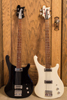
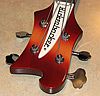
1973 4001 MG cb fwi
1986 4003 Shadow
2012 4004Cii FG w/gold trim
1986 4003 Shadow
2012 4004Cii FG w/gold trim
I use Irfanview. Just go to www.Irfanview.com and download. Its free, and very user friendly. Someone here suggested it in a post about a year ago. It takes some experimenting, but you can crank out some pretty good pics.
"Knowledge is Power"
Here's how I do it, keep in mind I am self taught on the computer, and have spent many frustrating hours figuring a system out that works for me. That being said lets go!
First I have created two files: Pics to edit, and Pics to send.
I download my pics into the pics to edit file.
I open Irfanview and find this file, then select the pic. It will be very large.
Click on "Image" then scroll to "Resize/Resample"
This should tell you the current size in "Pixels"
I generally dont mess with "height/width"
I use "set new size as percentage of original"
then I select "preserve aspect ratio"
I then procede to reduce the pic 75%-50%-40% to get it close to the size I need for the forum., after a while you develope an eyeball for the correct size.
When I get the pic close in size, I might use "enhance colors" usually only increasing the contrast and saturation just a little.
Then I use "Sharpen" to bring out the detail.
At this point I save it to my "Pics to send" file, (icons set to "details"), and it tells me my exact pic size in kb's. After a while you can look at the pic and know about what the correct size is, if its still a little to big, just reopen your "Pics to send" file and reduce the percentage just a little bit more, save it again, and your ready to go.
Like I said at the beginning, this may be the long way around the barn, but its how I learned to use it.
I hope this is helpful.
First I have created two files: Pics to edit, and Pics to send.
I download my pics into the pics to edit file.
I open Irfanview and find this file, then select the pic. It will be very large.
Click on "Image" then scroll to "Resize/Resample"
This should tell you the current size in "Pixels"
I generally dont mess with "height/width"
I use "set new size as percentage of original"
then I select "preserve aspect ratio"
I then procede to reduce the pic 75%-50%-40% to get it close to the size I need for the forum., after a while you develope an eyeball for the correct size.
When I get the pic close in size, I might use "enhance colors" usually only increasing the contrast and saturation just a little.
Then I use "Sharpen" to bring out the detail.
At this point I save it to my "Pics to send" file, (icons set to "details"), and it tells me my exact pic size in kb's. After a while you can look at the pic and know about what the correct size is, if its still a little to big, just reopen your "Pics to send" file and reduce the percentage just a little bit more, save it again, and your ready to go.
Like I said at the beginning, this may be the long way around the barn, but its how I learned to use it.
I hope this is helpful.
"Knowledge is Power"
Oh, one more important thing, the pic is generally way to big, so you'll have to crop it.
When you get the pic reduced to a reasonable size for your screen, click and drag a window around the area you want to save, then go to "edit" and select "crop selection", then continue to reduce the cropped image to size.
I usually do this before I mess with color enhancement or try to sharpen the image.
Sorry, I new I'd leave something out.
When you get the pic reduced to a reasonable size for your screen, click and drag a window around the area you want to save, then go to "edit" and select "crop selection", then continue to reduce the cropped image to size.
I usually do this before I mess with color enhancement or try to sharpen the image.
Sorry, I new I'd leave something out.
"Knowledge is Power"